Essbase: Loading Dates as Data

By default, only data values can be loaded into Essbase. However, sometimes it is helpful to load dates into an application (i.e. Product Inception Date). Follow these steps to enable an Essbase application to accept dates as data.

The first step is to edit the Outline in Essbase:

Navigate to the properties tab. “Typed measures enabled” will need to be set to True for dates to be activated:

Once typed measures are enabled, you will not be able to undo this setting:

Next, select the format that the date will display in Essbase:

Once the typed measures functionality has been enabled, select a member and set its properties to display date data. For this example, I created a member labeled “Inception Date” in the Measures dimension. Right click on the member and select Edit member properties:

Where the Type is set to Numeric, select Date from the dropdown menu:

Notice that the consolidation setting is set to “(^)Never”. This is the default setting for date members. Change this setting to “(~)Ignore” as Never Consolidate may cause some problems in an ASO outline if it is the first child in the hierarchy.

To load date data, make sure that the date is in the format selected from the properties tab. If mm/dd/yyyy is selected, represent that in the data file (i.e. 10/31/2011). In this example, there are 4 inception dates loaded for their respective products:

Notice that the inception dates are loaded to “Year N/A”. Rather than having to search for the relevant Year member for each Project, all Inception Date data is loaded to “Year N/A”. This keeps all of the Inception Date info in a more centralized location and facilitates quicker analysis.

Update (1/19/2015):

After loading the date data into Essbase, I was no longer able to export level 0 data. I would receive the following error:

  • Error: 1270042 Aggregate storage data export failed

After working with the Oracle Development team, they were able to conclude that there was an available workaround. This required that the Accounts dimension be switched from “Compression: True” to “Compression: False”:

After updating this setting and saving the outline, the level 0 data exported successfully.

One thing to note, even though this setting allows the data to be exported, the .txt file is about 3 times larger than if the Accounts dimension still had compression enabled. This is something to keep in mind if you’re dealing with a larger database as there is a very real possibility that performance will be affected…


Creating a SmartList: Linking Smartlists to Web Forms

What is a Smart List?
  • Allows for creation of custom lists that can be used in data forms
  • Goes beyond the limitations of Essbase: these lists are not limited to numbers only
  • Users select a member from a designated list (each Smart List cell has a dropdown arrow that expands to allow member selection in web forms)

Examples…

  • Active Period: Manage Forecast/Budget months by setting them to either “Active” or “Inactive”
  • Employee Status: Set employee status to “Full Time” or “Part Time”
  • Justification: Choose from “Research”, “Customer Feedback”, or “Expansion”

Creating a Smart List

First, create a new dimension (File-> New-> Dimension) with SmartList as the dimension type:

Next, create children of ActivePeriod. These will be the members of the Smart List (Right click on ActivePeriod, Create Member-> As Child):

Set the properties for each of the Smart List’s members. The label will be what appears in the dropdown menu, while the value is the number that will be assigned to that member in Essbase. The list will be sorted from smallest to largest. Here are the properties for Inactive:

And the properties for Active:

The way this Smart List is currently set up, Inactive will appear above Active because 0 precedes 1.

Set the properties for the Smart List:

Here is a description of each of the Smart List Dimension Properties referenced from Oracle’s knowledge base:

Property

Description

Label

Enter the text to display when the Smart List is selected. Smart Lists and Smart List members must have a Label assigned. Spaces and special characters are allowed.

Auto Generate ID

Generate a numeric ID for each Smart List entry. If you do not select this option, you can customize Smart List ID values.

Start Value

Populates the Value property of the first member in the Smart List. For example, if the Smart List dimension is ActivePeriod with Start Value set to 0, the first member added to this list has a value of 0.

Increment

This value is appended to the value of the last member in the list to determine the value for the selected member. For example:

ActivePeriod (Start Value=0, Increment=1)

Inactive (Value=0)

Active (Value=1)

Display Order

Smart Lists can be sorted in the dropdown menu by 1 of 3 ways:

ID: Unique number that sets the order for the Smart List entry

Name: Unique name containing only letters/numbers & underscores. (i.e. “Active”). No special characters or spaces.

Label: Displayed text for the Smart List entry in the dropdown

#Missing Data Form Label

How #Missing values are displayed in Smart List cells:

Dropdown: Displays the label set in #Missing Drop Down Label

Grid: This selection determines what the cell will display on a form when the cell is not highlighted/selected

#Missing Drop Down Label

Enter a label to be displayed as an entry in the Smart List whose value is #Missing


Linking a Smart List to a Web Form

Create and/or use an already existing member in a dimension that is being used in the application to be associated with the Smart List. In this example the account associated with the Smart List is called “Active Period”. Notice that this member has a space in the middle, unlike our Smart List dimension “ActivePeriod”, which is all one word:

Set the properties for “Active Period” so that the Smart List property is tagged to ActivePeriod and the Data Type is SmartList:

The most critical step before deploying the application is to set the Data Type Evaluation Order for the Planning application. In order for Smart Lists to appear on web forms, the dimension that the Smart List is associated with (in this case the Account dimension) must be included in the evaluation order. From the local library, right-click on the application:

Move the account dimension over to the selected dimensions pane for the selected plan type:

Deploy the application for the changes to take effect so that the Smart List can be utilized in a web form.

Next, select the form that will be using the Smar tList. Edit it and go to the Layout tab. For this example, “Active Period” is placed as the lone member of the account dimension in the rows:

Save the form and open it to check that the Smart List is working properly. The list is functioning correctly if a dropdown arrow appears in the highlighted cell:

Click the dropdown to make a selection:

The Smart List has been successfully created and linked to a Planning web form. This feature offers great functionality for users that require text data, as this is not available through Essbase alone. Smart Lists can also be utilized in member formulas and business rules.

For more detailed technical information on Smart Lists, here is a link to the Oracle documentation:

http://docs.oracle.com/cd/E1282501/epm.111/epmarchitect/frameset.htm?ch04s16.html


Update for ASO (1/12/2015):


Recently, I was attempting to create Smart List functionality in an ASO cube. My only previous experience had been with BSO cubes, so I was not prepared for the couple of key differences that came up that hindered my progress. Here are the steps I took to successfully create a Smart List associated with an ASO cube. First, create a Smart List dimension by right clicking on the application in the dimension library:

For this example, I’ve named the Smart List “ClientSource”:

The Smart List has one member in it, “PV”:

And the Smart List will be associated with the account member, “ClientSource”:

In the account dimension, select the member that will have the Smart List associated with it (“ClientSource”),  and update the following 2 highlighted settings. This is the first part of the process that differs from that outlined above. In BSO, the settings are labeled “Data Type” & “Smart List”, rather than “Type” & “Smart List”:

After saving, I figured that the Smart List was good to go, but on deployment, I received the following error:

After some trial & error, the issue turned out to be coming from the data storage settings on the parents of “ClientSource”. After setting both parents (“AttributeInfo” & “Accounts”) to “LabelOnly”, the application deployed successfully.

To recap, there are 2 key differences between ASO & BSO cubes when setting up Smart Lists:

  1. For BSO, the user must set “Data Type” to “SmartList” for the associated member. While in ASO, the user must set “Type” to “SmartList”
  2. Before deploying the ASO application, the parent members of the member that is associated with the Smart List must be set to “LabelOnly”

I hope that this can help a few of you from having to spend time troubleshooting the difference between Smart Lists in ASO & BSO.


Why Can’t Planners Access Essbase

In Hyperion 11.1.2.1, there is a change in how security is deployed. If you are having an issue deploying Planning security with Essbase adhoc access, and the user can’t

  1. Access Essbase Adhoc
  2. Access FR reports using an Essbase connection
  3. Access Essbase directly

you are not alone. This is not classified as a bug, but it sure can cause a lot of frustration. If you have a user that needs access to Essbase directly, the user can’t be associated to ONLY Planning applications. For them to get access to Essbase, even to access the Planning application, they must have security to a native Essbase application (a NON Planning application).

From the Oracle Doc ID 1328741.1

SYMPTOMS

Trying to add the “Essbase” application access type to a Planning user in Shared Services so the user can access native Essbase applications using the Excel Add-in. Shared Services confirms the update when saved but when checking the user again, it only has “Planning” access. This also happens when trying to use the MaxL command to modify the application access type.

CAUSE

Starting in EPM v11.1.2, a user’s type (application access type) cannot be changed by Maxl, the EAS console or manually via Shared services console. The type is automatically assigned based on the roles that the user has.

  • If a user has a role on a Planning application only, then that user is treated as a Planning user.
  • If the user has a role on a Essbase application only, then the user is treated as an Essbase user.
  • If the user has roles on both Planning and Essbase applications the user is treated as a Planning and

Essbase user.

SOLUTION

In order for a Planning user to access native Essbase applications in the Excel Add-in, the user will need to be given access to a native Essbase application. For example, assign the Planning user “Read” access to the Demo application.


Debunk The Myth: Never Fix On Dense Members

The generic rule in Essbase is that calculations FIX on sparse members because sparse members are what define the number of blocks.  When you want to limit the members of the block on which the calculation is executed, an IF statement is appropriate.

Quick Overview of Dense and Sparse

If you are unfamiliar with the concept of dense and sparse, here is a quick overview.  A data block in Essbase is constructed from the dense dimensions of the database.  The number of members in each dense dimension impacts the size of each data block.  The combination of a member in each sparse dimension is what defines a block.  The number of members in the sparse dimensions directly correlates to the number of blocks that may exist.

For a more detailed overview, reference Sparse, Dense, and Blocks For Dummies.

Comparison To Relational Database

A FIX is a lot like a SELECT statement in a relational database using a WHERE clause.  The WHERE clause limits the number of records, an Essbase FIX limits the number of blocks for which an action is taken.  An IF statement in Essbase is similar to a CASE statement in a relational database in that it executes on all the records and acts only when a criteria is met.

Limiting the records

Relational Example

UPDATE table_name
SET Salary=Annual Salary * Merit Increase
WHERE Year=2013;

Essbase Example

FIX(“2013”)
  Salary = “Annual Salary” * “Merit Increase”;
ENDFIX

Executing on all records when they meet criteria

Relational Example

SELECT 
   CASE 
      WHEN Year = 2013 THEN Salary = Annual Salary * Merit Increase 
      ELSE Salary = Salary 
   END 
FROM table_name

Essbase Example

IF(@ISMBR(“2013”))
  Salary = “Annual Salary” * “Merit Increase”;
ENDFIX

When running an UPDATE query, limiting the number of records is more efficient than running the query on all the records and checking for specific criteria to execute the logic.

Why Fix On Dense?

The reason we are taught to FIX on sparse dimensions and use IF on dense dimensions is that a FIX will improve performance by limiting the number of blocks on which the calculation executes.  There is no reason to FIX on dense dimensions because it isn’t limiting the number of blocks on which the calc is executed.

Forget all that!

Calculations still run for every intersection, not JUST the intersection of sparse members.  Assume a calculation fixes on one intersection of sparse members.  Also assume that there are 20 measures and 12 periods that are stored, and both dimensions are dense.  The following calculation

Salary = Annual_Salary * Merit_Increase;

would run on every dense combination, so it would execute 240 times (12 x 20).  You can easily prove this by incrementing the value of one dense member by 1.

Salary = Salary   1;

If Salary starts as #Missing, or 0, and the above line is executed, Salary will be 20 for each month.

Solution

This can easily be resolved.  Since you only want the calculation to execute one time on the block, add one member from the measures dimension to your fix statement.  This member doesn’t have to be the member you are calculating.  I typically will fix on a generic measure to eliminate confusion.  Change the calculation to the following.

FIX(No_Measure)
  Salary = Salary   1;
ENDFIX

Make sure Salary is set to #Missing or 0, and execute the new calculation.  When the new calculation script is executed, you should see a value of 1 for every month.

In a situation where Salary = Annual_Salary * Merit_Increase, the result will be correct regardless of whether the calculation fixes on one measure, but the performance will be far worse when executed on every Measure because it will run the same calculation multiple times.


Summarize The Essbase Data Error File

How many times have you been in a situation where you have to traverse through hundreds of lines and errors from an Essbase data load only to figure out that all the rejected records are caused by an issue with one member?  You load the file again and wham – another error file with issues you didn’t see the first time.

Although this is typically less of an issue in a production environment, these situations are very likely in the development and testing phases of a project.

In2Hyperion is introducing another free tool that will navigate through errors and summarize the reasons for the rejects.  If 1,000 errors occurred because of one member, the feedback provided will show one line.

Hopefully our community will be able to use this utility to save themselves time and frustration.  It’s a free download!  For more information about the license, requirements, and installation, read Show Unique Essbase Error utility page.


Meet XWRITE, XREF’s New Big Brother

The introduction of Hyperion 11.1.2 has some fantastic improvements.  Many of these have been long awaited.  The next few articles on In2Hyperion will describe some of the enhancements to Hyperion Planning, Hyperion Essbase, and Hyperion SmartView.

XREF Background

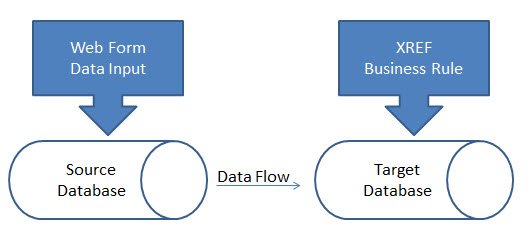
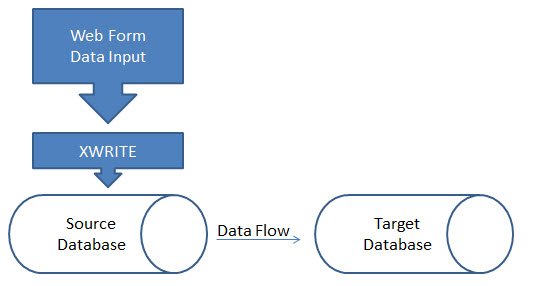
If you have been developing Planning applications, you are probably very familiar with the XREF function.  This function is used in business rules, calculation scripts, and member formulas.  It provides a method to move data from one plan type (Essbase database) to another plan type.  It is executed from the target database and pulls the data from the source.  XWRITE was actually introduced in later versions of 11.1.1.x, but is very stable in 11.1.2.x.  XWRITE is executed from the source and pushes data to the target.  This function is a huge improvement over XREF. 

XREF will copy data to a target database and must be executed from the target database.  The function pulls data rather than pushing it.  This causes two challenges.  Normally, the data is entered in the source database and is copied to the destination database.  When a Planning web form is saved, it can only execute a calculation on the database the web form is connected to (at least in older version – stay tuned).  This means an XREF function cannot be used when the form is saved.  The user has to go to another form, or execute a business rule manually, for the data to move.

The larger issue with XREF is accounting for block creation.  Remember, XREF pulls data from a source.  The destination may not have blocks that exist where the data will reside.  XREF does NOT account for the creation of the blocks if blocks don’t exist.  XREF must be used in conjunction with the CREATEBLOCKONEQUATION setting.  This is acceptable when fixing on very finite levels of data, but execution on larger amounts of data results in an extremely slow data movement process.  Essbase is responsible for the slow data movement process because it traverses all possible sparse member combinations to validate existence of data on the source.  Normally, data exists at a very small percentage of the possible blocks. In addition to the slow data movement process, it’s worth noting that the XREF function can also create blocks in your database which are unnecessary; ultimately increasing the size and decreasing the speed of your application.

Welcome to XWRITE

XWRITE is the opposite of XREF.  Rather than using XREF to pull the data from the target, XWRITE enables you to push data from the source.  Pushing data resolves the issues which XREF creates.

When XWRITE is executed from a web form, thus pushing data from the source to the target, there’s no longer a need to account for this process with two web forms or the manual execution of a business rule.

Since XWRITE is executed from the source, there’s no longer a need for looking at every possible sparse member combination on the target.  Using a FIX statement enables Essbase to decipher which blocks need to be copied, removing the guesswork and subsequently the requirement of CREATEBLOCKONEQUATION. Utilizating the XWRITE function results in faster processing and efficient block creation.

Prior to XWRITE, my preferred method of data movement involved exports from the source and imports to the target; thus eliminating the need for the XREF function.  The introduction of XWRITE has reduced the need for a data export/import process.


Curse You Implied Share!

Although implied shares can improve performance by not storing the same data multiple times, it has many negative impacts. For example, implied shares cause problems in Hyperion Planning at the load level (level 0).  A parent with a storage property of Stored that has one child (or only one child that consolidates) will create an implied share.  This results in level 0 members being locked, preventing web form data entry.  In Essbase/Planning, the storage method of any parent with one child has to be changed to Never Share to allow user input.

For those of you who have been snake bitten by this, you will welcome a relatively unknown Essbase configuration setting in the Essbase configuration file (essbase.cfg). 

IMPLIED_SHARE [app_name] TRUE | FALSE

An admin can now change the default behavior of how single child parents react, regardless of whether the storage type is Never Share or Stored.  This can be done for all applications on a server, or select applications.

By passing a parameter of TRUE (the default value), the parent with one child, or has only one child that consolidates to the parent, is treated as an implied share.

By passing a parameter of FALSE, the default behavior of a parent with one child acts as if it was set to Never Share.

Take advantage of this Essbase configuration setting.  Remember, when you add it to the config file, make sure the Essbase service is restarted so it will take effect.


This Isn’t Your Father’s Essbase Export

There are several ways to export data from Essbase on a large scale. Pulling it via Excel (Smart View or the Essbase Add-In) is not the best way to get large amounts of data when the goal is to move the data somewhere else, so this option will not be covered.

Database Export

The easiest method is to export all the data from a database by exporting the database.  This can be done in EAS.  This method is easy to automate with Maxl, but has little flexibility with formatting and the only option is to export all the data.  It can be exported in column format so the data can easily be loaded into another data repository.  If the data needs to be queried, or manipulated, this is a good option.  

Essbase Report Script

The classic way, prior to version 9, was to write a report script. This provides a tremendous amount of flexibility in formatting, but most admins struggle with this method, as it requires an in-depth knowledge of how data is most effectively queried.  If there isn’t a strong understanding, then extracting data is extremely slow.  Report scripts also offer the ability to export specific data, which is often required.

Calculation Script or Business Rule

Now, there is an alternate method that somewhat combines the best of the previous 2 methods.  A calculation script, or business rule, can now extract data in column format with a predefined column delimiter. It can filter the result to specific criteria, and doesn’t require the knowledge reports scripts does to make them efficient.

/* Export to text file */
DATAEXPORT "File" "delimiter" "fileName" "missingChar"
  
/* Export to relational database */
DATAEXPORT "DSN" "dsnName" "tableName" "userName" "password" 
  
When DATAEXPORT is used, there are a series of settings that can be applied.
  
SET DATAEXPORTOPTIONS
{
/* set the level of data to be extracted – same as a database export from EAS */
DataExportLevel ALL | LEVEL0 | INPUT;
  
/* Turning this on will export any member within the fix statement that is a dynamically calculated member that produces a value */
DataExportDynamicCalc ON | OFF;
  
/* A value between 0 and 16 – if no value is supplied, the number of decimals positions in the data, or the DataExportPrecision will be used */
DataExportDecimal n;
  
/* The number of positions numeric data is exported with, emphasizes data accuracy
NOTE: if DataExportDicimal is set, it will override this setting */
DataExportPrecision n;
  
/* When set to ON, every column will have a member name and they will be repeated from row to row */
DataExportColFormat ON | OFF;
  
/* Specifies the dense dimension used for columns – typically the months, or periods, are the most logical choice */
DataExportColHeader dimensionName;
  
/* When set to ON, the dimension names will preceed the data as column headers */
DataExportDimHeader ON | OFF;
  
/* When set to ON, data will be in column format and all members names will be repeated, and no column header will be included.  Missing and invalid data will be skipped producing successive dilimiters */
DataExportRelationalFile ON | OFF;
  
/* When set to ON, if the file specified already exists, it will be overwritten */
DataExportOverwriteFile ON | OFF;
  
/* When set to ON, the file exported will include additional details about the export
     - Summary of data export settings
    - Info, Warning, and Error messages
     - Exact number of blocks to be exported
     - Estimated time, excluding I/O time. */
DataExportDryRun ON | OFF;
};

Each method has its advantages.  I see the DATAEXPORT function becoming the primary export method because of its flexibility and ease of use.

A Word of Caution

When exporting data, always remember the population that has access to the export. Exporting data is a very popular method for backing up data, but often times it includes total company financials, employee salaries, and other sensitive data.


Optimizing Your Data Load Improves More Than You Think

The format of the data that is loaded to Essbase is often an after-thought.  But, should it be?  When requesting the data file from a source system, it is more important than you may think to have it sorted to mirror your outline.

Assume an outline has the following dimensions.

  • Period [DENSE]
  • Account [DENSE]
  • Region [SPARSE]
  • Category [SPARSE]
  • Product [SPARSE]
  • Organization [SPARSE]

The most efficient way to receive a data file would be to have it sorted by Organization, Product, Category, Region, and then Account.  Data files load faster when the columns that hold the sparse members are sorted in reverse order of the sparse dimensions that exist in the outline.

The reason the data loads faster is because it opens a block of data only one time.  If the data was sorted by the dense members first, then every block would have to be opened multiple times.  If the same sparse member combinations have 3,000 dense members with data, the block would be opened up to 3,000 times.

There are some more important benefits of doing this, however.  When the block is opened multiple times, the database becomes far more fragmented than it needs to be.   Fragmentation causes calculations to be slower and retrieving data can also be impacted, which can lead to frustrated customers.

By not sorting the data when loaded, every time a data load occurs, any performance issues that may exist are exacerbated.  So, anytime possible, sort the data load files by the last sparse dimension in the outline, the second to last sparse dimension in the outline, and so on.  You may be presently surprised at the benefits.


Is My Essbase Calculation Seeing Deja Vu All Over Again?

Everybody knows the quickest way from point A to point B is a straight line.  Everybody assumes that the path is traveled only one time – not back and forth, over and over again.  I see a lot of Essbase calculations and business rules, from experienced and novice developers, that go from point A to point B taking a straight line.  But, the calculation travels that line multiple times and is terribly inefficient.

Here is a simple example of a calculation.  Assume the Account dimension is dense, and the following members are all members in the Account dimension.  We will also assume there is a reason to store these values rather than making them dynamic calc member formulas.  Most of these are embedded in a FIX statement so the calculation only executes on the appropriate blocks.  To minimize confusion, this will not be added to the example.

Average Balance = (Beginning Balance  Ending Balance)  / 2;
Average Headcount = (Beginning Headcount   Ending Headcount) / 2;
Salaries = Average Headcount * Average Salaries;
Taxes = Gross Income * Tax Rate;

One of the staples of writing an effective calculation is to minimize the number of times a single block is opened, updated, and closed.  Think of a block as a spreadsheet, with accounts in the rows, and the periods in the columns.  If 100 spreadsheets had to be updated, the most efficient way to update them would be to open one, update the four accounts above, then save and close the spreadsheet (rather than opening/editing/closing each spreadsheet 4 different times for each account).

I will preface by stating the following can respond differently in different version.  The 11.1.x admin guide specifically states the following is not accurate.  Due to the inconsistencies I have experienced, I always play it safe and assume the following regardless of the version.

You might be surprised to know that the example above passes through every block four times.  First, it will pass through all the blocks and calculate Average Balance.  It will then go back and pass through the same blocks again, calculating Average Headcount.   This will occur two more times for Salaries and Taxes.  This is, theoretically, almost 4 times slower than passing through the blocks once.

The solution is very simple.  Simply place parenthesis around the calculations.

(
Average Balance = (Beginning Balance  Ending Balance)  / 2;
Average Headcount = (Beginning Headcount   Ending Headcount) / 2;
Salaries = Average Headcount * Average Salaries;
Taxes = Gross Income * Tax Rate;
)

This will force all four accounts to be calculated at the same time.  The block will be opened, all four accounts will be calculated and the block will be saved.

If you are new to this concept, you probably have done this without even knowing you were doing it.  When an IF statement is written, what follows the anchor?  An open parenthesis.  And, the ENDIF is followed by a close parenthesis.  There is your block!

"East"
(IF(@ISMBR("East"))
    "East" = "East" * 1.1;
ENDIF)

I have seen this very simple change drastically improve calculations.  Go back to a calculation that can use blocks and test it.  I bet you will be very pleased with the improvement.