Creating a SmartList: Linking Smartlists to Web Forms

What is a Smart List?
  • Allows for creation of custom lists that can be used in data forms
  • Goes beyond the limitations of Essbase: these lists are not limited to numbers only
  • Users select a member from a designated list (each Smart List cell has a dropdown arrow that expands to allow member selection in web forms)

Examples…

  • Active Period: Manage Forecast/Budget months by setting them to either “Active” or “Inactive”
  • Employee Status: Set employee status to “Full Time” or “Part Time”
  • Justification: Choose from “Research”, “Customer Feedback”, or “Expansion”

Creating a Smart List

First, create a new dimension (File-> New-> Dimension) with SmartList as the dimension type:

Next, create children of ActivePeriod. These will be the members of the Smart List (Right click on ActivePeriod, Create Member-> As Child):

Set the properties for each of the Smart List’s members. The label will be what appears in the dropdown menu, while the value is the number that will be assigned to that member in Essbase. The list will be sorted from smallest to largest. Here are the properties for Inactive:

And the properties for Active:

The way this Smart List is currently set up, Inactive will appear above Active because 0 precedes 1.

Set the properties for the Smart List:

Here is a description of each of the Smart List Dimension Properties referenced from Oracle’s knowledge base:

Property

Description

Label

Enter the text to display when the Smart List is selected. Smart Lists and Smart List members must have a Label assigned. Spaces and special characters are allowed.

Auto Generate ID

Generate a numeric ID for each Smart List entry. If you do not select this option, you can customize Smart List ID values.

Start Value

Populates the Value property of the first member in the Smart List. For example, if the Smart List dimension is ActivePeriod with Start Value set to 0, the first member added to this list has a value of 0.

Increment

This value is appended to the value of the last member in the list to determine the value for the selected member. For example:

ActivePeriod (Start Value=0, Increment=1)

Inactive (Value=0)

Active (Value=1)

Display Order

Smart Lists can be sorted in the dropdown menu by 1 of 3 ways:

ID: Unique number that sets the order for the Smart List entry

Name: Unique name containing only letters/numbers & underscores. (i.e. “Active”). No special characters or spaces.

Label: Displayed text for the Smart List entry in the dropdown

#Missing Data Form Label

How #Missing values are displayed in Smart List cells:

Dropdown: Displays the label set in #Missing Drop Down Label

Grid: This selection determines what the cell will display on a form when the cell is not highlighted/selected

#Missing Drop Down Label

Enter a label to be displayed as an entry in the Smart List whose value is #Missing


Linking a Smart List to a Web Form

Create and/or use an already existing member in a dimension that is being used in the application to be associated with the Smart List. In this example the account associated with the Smart List is called “Active Period”. Notice that this member has a space in the middle, unlike our Smart List dimension “ActivePeriod”, which is all one word:

Set the properties for “Active Period” so that the Smart List property is tagged to ActivePeriod and the Data Type is SmartList:

The most critical step before deploying the application is to set the Data Type Evaluation Order for the Planning application. In order for Smart Lists to appear on web forms, the dimension that the Smart List is associated with (in this case the Account dimension) must be included in the evaluation order. From the local library, right-click on the application:

Move the account dimension over to the selected dimensions pane for the selected plan type:

Deploy the application for the changes to take effect so that the Smart List can be utilized in a web form.

Next, select the form that will be using the Smar tList. Edit it and go to the Layout tab. For this example, “Active Period” is placed as the lone member of the account dimension in the rows:

Save the form and open it to check that the Smart List is working properly. The list is functioning correctly if a dropdown arrow appears in the highlighted cell:

Click the dropdown to make a selection:

The Smart List has been successfully created and linked to a Planning web form. This feature offers great functionality for users that require text data, as this is not available through Essbase alone. Smart Lists can also be utilized in member formulas and business rules.

For more detailed technical information on Smart Lists, here is a link to the Oracle documentation:

http://docs.oracle.com/cd/E1282501/epm.111/epmarchitect/frameset.htm?ch04s16.html


Update for ASO (1/12/2015):


Recently, I was attempting to create Smart List functionality in an ASO cube. My only previous experience had been with BSO cubes, so I was not prepared for the couple of key differences that came up that hindered my progress. Here are the steps I took to successfully create a Smart List associated with an ASO cube. First, create a Smart List dimension by right clicking on the application in the dimension library:

For this example, I’ve named the Smart List “ClientSource”:

The Smart List has one member in it, “PV”:

And the Smart List will be associated with the account member, “ClientSource”:

In the account dimension, select the member that will have the Smart List associated with it (“ClientSource”),  and update the following 2 highlighted settings. This is the first part of the process that differs from that outlined above. In BSO, the settings are labeled “Data Type” & “Smart List”, rather than “Type” & “Smart List”:

After saving, I figured that the Smart List was good to go, but on deployment, I received the following error:

After some trial & error, the issue turned out to be coming from the data storage settings on the parents of “ClientSource”. After setting both parents (“AttributeInfo” & “Accounts”) to “LabelOnly”, the application deployed successfully.

To recap, there are 2 key differences between ASO & BSO cubes when setting up Smart Lists:

  1. For BSO, the user must set “Data Type” to “SmartList” for the associated member. While in ASO, the user must set “Type” to “SmartList”
  2. Before deploying the ASO application, the parent members of the member that is associated with the Smart List must be set to “LabelOnly”

I hope that this can help a few of you from having to spend time troubleshooting the difference between Smart Lists in ASO & BSO.

Debunk The Myth: Never Fix On Dense Members

The generic rule in Essbase is that calculations FIX on sparse members because sparse members are what define the number of blocks.  When you want to limit the members of the block on which the calculation is executed, an IF statement is appropriate.

Quick Overview of Dense and Sparse

If you are unfamiliar with the concept of dense and sparse, here is a quick overview.  A data block in Essbase is constructed from the dense dimensions of the database.  The number of members in each dense dimension impacts the size of each data block.  The combination of a member in each sparse dimension is what defines a block.  The number of members in the sparse dimensions directly correlates to the number of blocks that may exist.

For a more detailed overview, reference Sparse, Dense, and Blocks For Dummies.

Comparison To Relational Database

A FIX is a lot like a SELECT statement in a relational database using a WHERE clause.  The WHERE clause limits the number of records, an Essbase FIX limits the number of blocks for which an action is taken.  An IF statement in Essbase is similar to a CASE statement in a relational database in that it executes on all the records and acts only when a criteria is met.

Limiting the records

Relational Example

UPDATE table_name
SET Salary=Annual Salary * Merit Increase
WHERE Year=2013;

Essbase Example

FIX(“2013”)
  Salary = “Annual Salary” * “Merit Increase”;
ENDFIX

Executing on all records when they meet criteria

Relational Example

SELECT 
   CASE 
      WHEN Year = 2013 THEN Salary = Annual Salary * Merit Increase 
      ELSE Salary = Salary 
   END 
FROM table_name

Essbase Example

IF(@ISMBR(“2013”))
  Salary = “Annual Salary” * “Merit Increase”;
ENDFIX

When running an UPDATE query, limiting the number of records is more efficient than running the query on all the records and checking for specific criteria to execute the logic.

Why Fix On Dense?

The reason we are taught to FIX on sparse dimensions and use IF on dense dimensions is that a FIX will improve performance by limiting the number of blocks on which the calculation executes.  There is no reason to FIX on dense dimensions because it isn’t limiting the number of blocks on which the calc is executed.

Forget all that!

Calculations still run for every intersection, not JUST the intersection of sparse members.  Assume a calculation fixes on one intersection of sparse members.  Also assume that there are 20 measures and 12 periods that are stored, and both dimensions are dense.  The following calculation

Salary = Annual_Salary * Merit_Increase;

would run on every dense combination, so it would execute 240 times (12 x 20).  You can easily prove this by incrementing the value of one dense member by 1.

Salary = Salary   1;

If Salary starts as #Missing, or 0, and the above line is executed, Salary will be 20 for each month.

Solution

This can easily be resolved.  Since you only want the calculation to execute one time on the block, add one member from the measures dimension to your fix statement.  This member doesn’t have to be the member you are calculating.  I typically will fix on a generic measure to eliminate confusion.  Change the calculation to the following.

FIX(No_Measure)
  Salary = Salary   1;
ENDFIX

Make sure Salary is set to #Missing or 0, and execute the new calculation.  When the new calculation script is executed, you should see a value of 1 for every month.

In a situation where Salary = Annual_Salary * Merit_Increase, the result will be correct regardless of whether the calculation fixes on one measure, but the performance will be far worse when executed on every Measure because it will run the same calculation multiple times.


Summarize The Essbase Data Error File

How many times have you been in a situation where you have to traverse through hundreds of lines and errors from an Essbase data load only to figure out that all the rejected records are caused by an issue with one member?  You load the file again and wham – another error file with issues you didn’t see the first time.

Although this is typically less of an issue in a production environment, these situations are very likely in the development and testing phases of a project.

In2Hyperion is introducing another free tool that will navigate through errors and summarize the reasons for the rejects.  If 1,000 errors occurred because of one member, the feedback provided will show one line.

Hopefully our community will be able to use this utility to save themselves time and frustration.  It’s a free download!  For more information about the license, requirements, and installation, read Show Unique Essbase Error utility page.


BUG REPORT – Shared Members Security in EPMA

Oracle has confirmed a bug related to the deployment of security with a planning application maintained in EPMA in version 11.1.2.x.  When the Shared Members checkbox is selected in an EPMA deployment of a Planning application, it ignores this option.  Even if the Shared Members box is checked, the user still only gets access to Ohio Region, and not the children, in the example below.   Oracle is currently working on a patch.

What Does Checking Shared Members Do?

By default, any member that is a shared member under a parent with security, it gets excluded.  For example, if the security for Ohio Region is set to @IDESCENDANTS with READ access, the three members below Ohio Region would have no access.
– Ohio Region
– Columbus (Shared)
– Cincinnati (Shared)
– Cleveland (Shared)

The filter that gets pushed to Essbase would look something like this.

@REMOVE(@IDESCENDANTS(“Ohio Region”),@SHARE(@IDESCENDANTS(“Ohio Region”)))

When the shared members are checked, it tells Hyperion that you want to include shared members in the security.  The same example above, with shared members selected, would give users access to all 3 members.  The filter that gets pushed to Essbase would then look like this.

@IDESCENDANTS(“Ohio Region”)

The Workaround

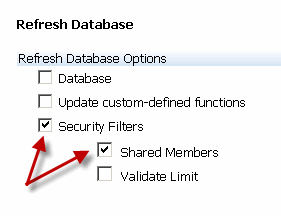
The workaround for this is to deploy the hierarchies from EPMA, and Refresh the database (security only) with Shared Members selected from Hyperion Planning.

When a patch is released, we will release the details.


Article Now Available in InVision

Josh Forrest and I presented at last year’s Collaborate conference.  Along with that presentation, we wrote a white paper on the implementation of Hyperion Planning.  This paper included process of selecting a vendor, the project goals, requirements gathering, project methodology, and even the lessons learned once the implementation was completed.

The editors of OAUG asked us if they could publish the article in the summer edition, which was released this week.  The article was written closely with Abercrombie & Fitch and represents the process from the business, not from the consulting services, point of view.

The article can be downloaded here at www.oaug.org.  Access to the article requires free registration.


KScope 2012 Wrap-Up

Kscope was another fantastic event.  Kudos to those responsible for organizing it.  Thank you to all the speakers who volunteered their time and shared their knowledge.  The most frequent request Josh, Rob, and I had, was to make our presentations available.  They are available on the Kscope site, but many of you don’t have access.  So, we are happy to make them available here.

I also had tremendous feedback on the ribbon. At least half the participants in our sessions used it.  We got a couple of great recommendations as well.  With some luck (meaning my schedule slows down a little), I will be working on those in the near future.

Download Josh Forrest’s presentation on Hyperion Financial Reporting

Rob Donahue’s presentation on Hyperion infrastructure

Download Kyle Goodfriend’s presentation on Hyperion Planning


Meet XWRITE, XREF’s New Big Brother

The introduction of Hyperion 11.1.2 has some fantastic improvements.  Many of these have been long awaited.  The next few articles on In2Hyperion will describe some of the enhancements to Hyperion Planning, Hyperion Essbase, and Hyperion SmartView.

XREF Background

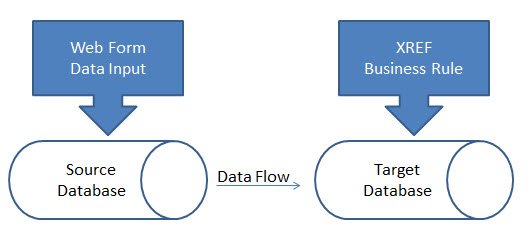
If you have been developing Planning applications, you are probably very familiar with the XREF function.  This function is used in business rules, calculation scripts, and member formulas.  It provides a method to move data from one plan type (Essbase database) to another plan type.  It is executed from the target database and pulls the data from the source.  XWRITE was actually introduced in later versions of 11.1.1.x, but is very stable in 11.1.2.x.  XWRITE is executed from the source and pushes data to the target.  This function is a huge improvement over XREF. 

XREF will copy data to a target database and must be executed from the target database.  The function pulls data rather than pushing it.  This causes two challenges.  Normally, the data is entered in the source database and is copied to the destination database.  When a Planning web form is saved, it can only execute a calculation on the database the web form is connected to (at least in older version – stay tuned).  This means an XREF function cannot be used when the form is saved.  The user has to go to another form, or execute a business rule manually, for the data to move.

The larger issue with XREF is accounting for block creation.  Remember, XREF pulls data from a source.  The destination may not have blocks that exist where the data will reside.  XREF does NOT account for the creation of the blocks if blocks don’t exist.  XREF must be used in conjunction with the CREATEBLOCKONEQUATION setting.  This is acceptable when fixing on very finite levels of data, but execution on larger amounts of data results in an extremely slow data movement process.  Essbase is responsible for the slow data movement process because it traverses all possible sparse member combinations to validate existence of data on the source.  Normally, data exists at a very small percentage of the possible blocks. In addition to the slow data movement process, it’s worth noting that the XREF function can also create blocks in your database which are unnecessary; ultimately increasing the size and decreasing the speed of your application.

Welcome to XWRITE

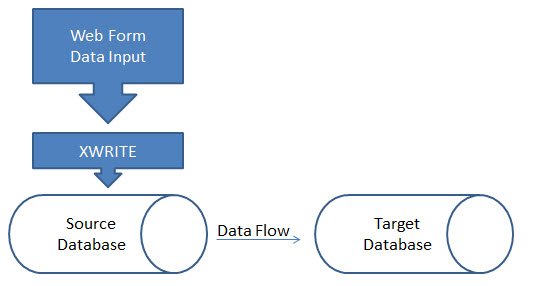
XWRITE is the opposite of XREF.  Rather than using XREF to pull the data from the target, XWRITE enables you to push data from the source.  Pushing data resolves the issues which XREF creates.

When XWRITE is executed from a web form, thus pushing data from the source to the target, there’s no longer a need to account for this process with two web forms or the manual execution of a business rule.

Since XWRITE is executed from the source, there’s no longer a need for looking at every possible sparse member combination on the target.  Using a FIX statement enables Essbase to decipher which blocks need to be copied, removing the guesswork and subsequently the requirement of CREATEBLOCKONEQUATION. Utilizating the XWRITE function results in faster processing and efficient block creation.

Prior to XWRITE, my preferred method of data movement involved exports from the source and imports to the target; thus eliminating the need for the XREF function.  The introduction of XWRITE has reduced the need for a data export/import process.


Curse You Implied Share!

Although implied shares can improve performance by not storing the same data multiple times, it has many negative impacts. For example, implied shares cause problems in Hyperion Planning at the load level (level 0).  A parent with a storage property of Stored that has one child (or only one child that consolidates) will create an implied share.  This results in level 0 members being locked, preventing web form data entry.  In Essbase/Planning, the storage method of any parent with one child has to be changed to Never Share to allow user input.

For those of you who have been snake bitten by this, you will welcome a relatively unknown Essbase configuration setting in the Essbase configuration file (essbase.cfg). 

IMPLIED_SHARE [app_name] TRUE | FALSE

An admin can now change the default behavior of how single child parents react, regardless of whether the storage type is Never Share or Stored.  This can be done for all applications on a server, or select applications.

By passing a parameter of TRUE (the default value), the parent with one child, or has only one child that consolidates to the parent, is treated as an implied share.

By passing a parameter of FALSE, the default behavior of a parent with one child acts as if it was set to Never Share.

Take advantage of this Essbase configuration setting.  Remember, when you add it to the config file, make sure the Essbase service is restarted so it will take effect.


Managing More With Less Doesn’t Have To Be Impossible


We will always be asked to do more with less. Finance is asked to produce more and better analytics with less people. Sales people are asked to produce more in a weakening economy with less marketing dollars, and yes, groups that manage Essbase environments are asked to produce and manage more data/applications with shrinking resources.

Back in the Day

In a prior life, I used to manage a group responsible for managing the Essbase environment used to produce all the reporting for the group. It generated about 70% of the revenue for Bank One (now Chase). We delivered all the reporting, budgeting, and forecasting applications. It included nearly 2 TB of data (pre ASO) on four servers that included more than 50 databases. All the typical technologies were employed. A large number of filters existed to maintain security. Many of the applications were linked together with several types of partitions. Data was loaded daily, weekly, and monthly. SQL Server was used for all the ETL processes, and we completed the development and performed all the maintenance with four people.

The only way the group could be effective in developing and enhancing applications, was to eliminate our effort spent on typical production activities. With the number of applications and the frequency they were updated (daily, weekly, or monthly), communicating this information to the more than 250 users was also a large time commitment.

The Solution

We built custom applications using the Essbase API to not only automate the tasks, but also notify the appropriate person if there was an error. This included everything from data loads, application builds, ETL processing, nightly data exports, repetitive calculations, and every other aspect of the maintenance. We even automated the validation of the data during the load process. Data loaded to the ETL layer was compared to the ETL Export. After the data was loaded to the Essbase application, we automated Excel data retrieves and compared them back to the ETL data exports. We effectively eliminated any effort it took to maintain the environment unless an error occurred that required attention. This was the ONLY way we could keep our heads above water.

We chose the API because it is so robust. It has most of the Maxl functions. It introduces the ability to check for errors at any point in the process, and can take the appropriate steps to resolve. No manual intervention was required. The same application can interact with the ETL layer, send text messages or pages, email administrators and users, and update web pages with statuses that the users can see (like the state of the load process, calculation status, etc.).

This solution may be overkill for very small implementations of one or two applications. But, don’t underestimate its importance in medium to large-scale operations. It minimizes costs, reduces errors, provides a better user experience, and minimizes delays in new development.

I highly recommend investigating how this would work for your group. Although I used the Visual Basic API, there are also libraries for C and Java.


Why is my database growing? It’s killing my calc times!

There are times when planning and forecasting databases grow for apparently no reason at all. The static data (YTD actuals) that is loaded hasn’t changed and the users say they aren’t doing anything different.

If you load budgets or forecasts to Essbase, you probably do what I’m about to tell you. If you are a systems administrator and have never seen how finance does a budget or forecast, this might be an education.

The culprit?  More data!

Budgets and forecasts are not always completed at the bottom of the hierarchy and rolled up. I don’t mean technically, as you might be thinking, Yes they do, they load to level 0 members and it gets consolidated up the outline. When it comes to budgets and forecasts, they are largely done in a top down approach. What this means is that finance is given a goal, or number, they have to hit, and they have to PUSH it down to lower business groups. The way a financial analyst creates a top-down budget, many times, is to allocate a value based on a metric, like headcount or sales.

Assume a budget for desktop support services is required. Let’s say management has mandated that the expense doesn’t grow from last year. Since this cost is to support the people in the business, the expense is divided by the expected headcount and allocated evenly. If a business unit has 20% of the people, that unit will get 20% of the expense. Since the expense to be allocated isn’t going to change, but the headcount will, the following will be the result:

Because the analyst doesn’t want to worry about missing any changes to the headcount forecast, he or she will create a data retrieve with headcount for every cost center, whether it has headcount or not. A lock and send sheet now takes the percentage of headcount each cost center has and multiplies that factor by the total expense. As headcount gets re-forecasted, this expense has to be reallocated. With this methodology, all the user has to do is retrieve the sheet with all the headcount forecast. The math does the allocation and the result is sent back to the database.

Easy, right?

This makes a ton of sense for an accurate forecast or budget with minimal effort. Not so fast, as this has two major flaws.

First, the volume of data loaded may be drastically higher than it needs to be. Assume the worksheet has 500 cost centers (500 rows). If half of these have no headcount, there are an additional 250 blocks created that hold zeros (assuming the cost center/organization hierarchy is sparse). This method, although very efficient for updating the numbers for the analyst when headcount changes, is causing the database to grow substantially. In this isolated example, there is twice as much data than is required.

Secondly, since the data has to be loaded at level 0, the analyst thinks loading at every cost center is a requirement. The materiality of the data at this level is often irrelevant. Let’s say that the analyst is really forecasting at the region, but loading data at the cost center because it is required to be loaded at level 0. Assume there are 10 regions in which these 500 cost centers exist. A forecast at the 250 cost centers that have headcount is not required. The forecast only needs to be loaded for 10 cost centers, one for each region. If this method were used, we would only create 10 blocks, rather than the 250, or 500 originally. When the system has hundreds of users, and thousands of accounts, you can see how the size of the database would grow substantially. This also provides no additional value and huge performance problems. In the example above, the number of blocks can be reduced from 500 to 10. It is far quicker to calculate 10 blocks than 500.

Even if the data needs to be at the cost center, many times the allocation is so small, the result of the allocation is pennies, or dollars. You would be hard-pressed to find a budget where a few dollars is material. In situations like this, the users have to ask themselves if the detail is worth the performance impact.

Users, Help Yourselves

Educate your users and co-workers on the impacts of performing these types of allocations. If loading data at every cost center is required, change your formula. Rather than calculating the expense as

=headcount / total headcount * Total Expense

add an IF statement so when the retrieve has no headcount, the calculation produces a #MI,

rather than a 0. This would be more efficient

=IF(headcount=0,”#MI”, headcount / total headcount * Total Expense)

If this is not necessary, change the way the data is loaded. Rather than picking all the cost centers, retrieve the headcount from the regions and build the send template to load to one cost center for each region.

The Real World

I worked for a large financial institution with a 100 Billion dollar budget. More than 70% of all the data was less than 10 dollars, and 30% was equal to zero! The budget was never looked at below region, which was 4 levels deep in an organization hierarchy that included more than 30,000 cost centers.

After consolidating the insignificant data and educating the users, the calc times decreased from 50 minutes to less than 5. All aspects of performance were better.

Easily Find Out How This is Impacting Your Application

There are a lot of ways to see if this phenomenon impacts your database. If the database is small, the export could be loaded to Excel. With some basic IF statements, the number of cells that were higher or lower than an identified threshold could be determined. Because I regularly work in a lot of different environments with large amounts of data, I wrote an application to traverse through an Essbase export to produce statistics on the data. The application is attached for download. Make sure you have the .NET libraries installed or this will not execute.  Version 3.5 or higher is required, and can be found by searching download .net framework.  There is a good chance it is already installed.

This is a simple application that I developed quickly to help me understand the degree to which a database is impacted by the example explained above. It will traverse through roughly 25,000 lines every second, and will provide the following metrics:

  • the number and percentage of values above a threshold entered
  • the number and percentage of values below a threshold entered
  • the number and percentage of values that are 0
  • the number and percentage of values that are #Missing, or Null
  • The number of lines in the export and the number of seconds it took to process

To use this, export the database at level 0 and choose column format. You will be prompted for the path and file name of the export, and the threshold to evaluate.

Download Essbase Export Analysis, and give it a try.