Map Smart List to Dimension

As you all notice PBCS does not yet offer the possibility to create attribute dimensions. One of the solutions to get around this is to choose to map a smart list to a dimension in the map reporting module. Follow the steps below to configure your mapping.

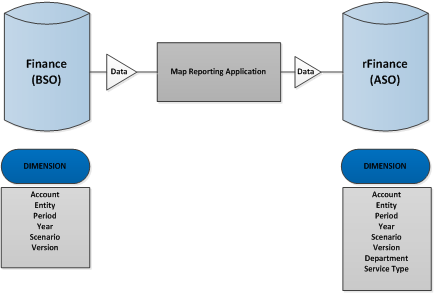
Let’s assume that you already have 2 plan types, one BSO and one ASO. In the example below, my plan type names are Finance for the BSO and rFinance for the ASO. In the project where I implemented this solution, I only needed 2 different attributes (Department and Service type) and I didn’t need any customized dimensions.
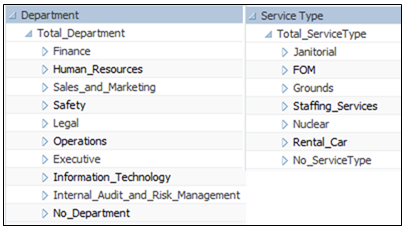
  • First you need to create the ASO dimensions representing the desired attributes. In my example I have two different attributes: Department and Service Type. On each of these dimensions create the members representing the value of your attribute. Please note that the members’ name must match the value of the smart list consequently, they need to follow the naming convention of the smart list (no spaces or special characters). You will also notice that for each of the dimensions I have created a default member (No_***), I will explain why I did this a bit later on in the post.
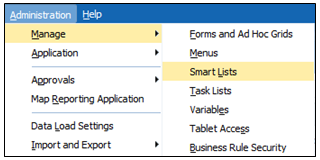
  • On the second step we will create the smart list. To do that click on Administration -> Manage -> Smart lists. Then create the new smart lists by clicking on add.

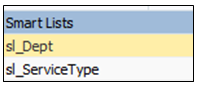
    For now just create the smart lists, we will add value in other steps.
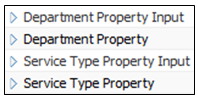
  • Now, we will create the BSO members linked to the smart list. Go to your BSO outline and on the account dimension create 4 members’ names, Department Property, Department Property Input, Service Type Property and Service Type Property Input. Link these members to the correct smart list.
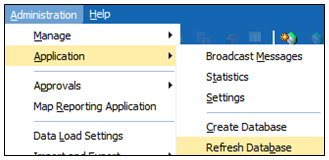
  • Once this step in finished go to refresh the app by clicking on Administration -> Application -> Refresh Database.
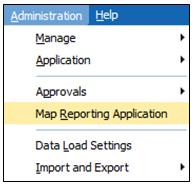
  • Now that all members and smart lists are created, let’s create the map reporting application. To do that click on Administration -> Map Reporting Application then click on add.
    On the first tab choose your source (Finance) and reporting (rFinance) application, and don’t forget to add a name to the map reporting.
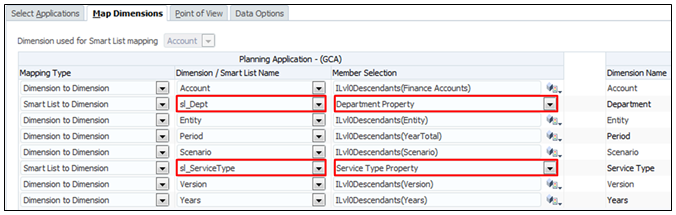
    On the second tab for the department and service type row choose the Smart List to Dimension mapping type, and then choose the appropriate smart list. On the member section choose Department Property and Service Type Property members and click on save.
    Now you should see on the screen the application mapping that you have just created. Select it and refresh it by clicking on refresh
  • Now we will go back to the smart lists that we created in the second step. Since we have linked these smart lists to a dimension, we can now update them automatically. This can help you save a lot of time if you have smart lists with 50 members or more.
    To do this, go on the smart list screen (see step 2). Once you are there, select the smart list and click on synchronize.

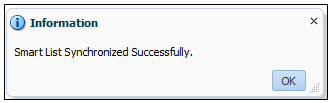
    Once this is done, the message below should appear.
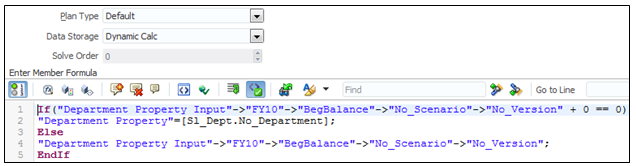
  • In order to make the smart list to dimension work, we need to assign an attribute value to every intersection for which we have data. For easy maintenance and to avoid business rules that are running for too long, we will do this by attaching a formula to a member (Department Property and Service Type Property). Go to your outline and edit these members by making them dynamic and by adding the formula that you see in the screen shot below (this formula might need to be updated depending on the name and number of dimensions that you have in your application). You will see in the formula that I’m defaulting the value of the attribute to No_Department, this is because you can’t leave any intersection #missing it will lead the map reporting to an error.
  • The final step is to create the form where the user can set up the attribute of their choice for every entity.
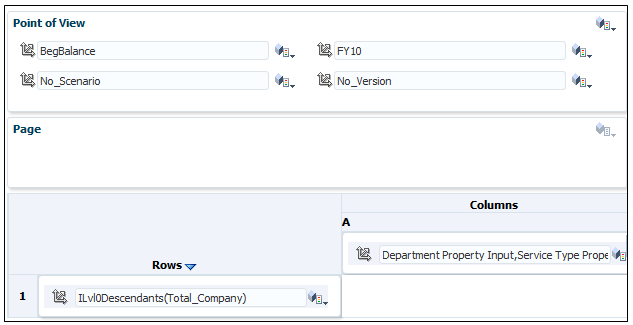
    Go to the form panel to create your form, in the POV section put the member that you put in the above formula. In the row put the level 0 entity and in the column put the member Department Property Input and Service Type Property Input.
    You can now push your data using the previous map reporting application.
Pro: This solution is very easy to maintain for the admin, and if needed you can also let a user play with the attributes.
Con: If you have too many attributes, this can make the size of the application get too big and consequently slower.


One at a time, please

Introduction

One of the problems with giving users of Hyperion Planning the ability to run calculations is opening up the possibility for all of them to run the same calculation at the same time.  This can cause a range of issues, from slower performance, to calculations never finishing due to locked blocks, to crashing the server.

Prior to Planning, I created VB applications to monitor what was calculated to make sure multiple calculations were not executed at the same time.  Initiating a calculation through a web portal allowed us to notify the user that the calculation request was ignored because a calculation was already running.

Both Essbase and Planning have come a long way since the 90s.  With the introduction of the @RETURN function, developers can interact with users and create a break in a calculation (business rule) so it doesn’t proceed.  The message is still reactive, but with some creativity, there are some really awesome things you can achieve.  Controlling what calculations are executed simultaneously is one of those things.

The Goal

Assume an application has a global consolidation calculation that is required to be executed for reporting requirements.  Since the administrators don’t want to be bothered at all hours of day and night, they want to enable the users to run the calculation and ensure it isn’t run more than one time during the calculation window.

This assumes the 6 required dimensions in Planning, plus a Department dimension.

The Method


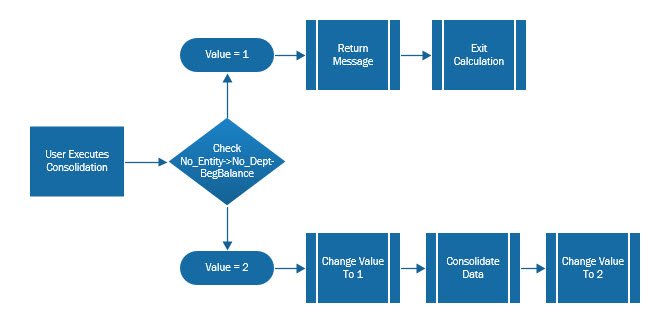
Make a predefined placeholder where an indicator can be saved – a 1 or a 2.  When the calculation is executed, the value will be set to a 1.  When the calculation is finished, the value will be set to 2.  When the calculation is initiated, it will check that value.  If it is a 2, the calculation will execute.  If it is a 1, it assumes a calculations is already running so it will abort and notify the users.  This ensures that the calculation will never run twice at the same time.

Note:  I prefer the use of 1 and 2 over 0 and 1.  Many times a process is implemented to eliminate zeros and restructure the application periodically.  Not using a zero can eliminate errors in some situations.

Example

FIX("No Entity","No_Dept","No Account","Budget","FY15","BegBalance")    SET CREATEBLOCKONEQ ON;    "Working"(      /* Check to see if a calculation is running         If the flat is a 1, return a message and stop the calculation         If the flag is a 2, continue */      IF("Working" == 1)        @RETURN ("This calculation is already running.  Please come back at a
                       later time and try again.", ERROR);      ELSE        "Working" = 1;      ENDIF)    SET CREATEBLOCKONEQ OFF;  ENDFIX     /* Aggregate the database */  FIX("Working","Budget","FY15")    AGG("Entity","Department");  ENDFIX     /* Set the flag back to 2 */  FIX("No Entity","No_Dept","No Account","Budget","FY15","BegBalance")    "Working" = 2;   ENDFIX

Summary

This method could be used in a variety of situations, not just a global calculation.  If this inspires you to use the @RETURN in other ways, please share them with the In2Hyperion and we can make your solution available to everybody.


Recommended Settings for Oracle Hyperion Products

Problem

Oracle has recommended settings for Internet Explorer (IE7, IE8, IE9, IE10 and IE11) when using Hyperion products.  I get this question a lot from my clients, so I thought I would share Oracles suggested settings.  Without changing these, there will be intermittent problems, and frustration points.

Solution

Configure browser to check for new version every time user visits a page

  • Open Internet Explorer
  • Go to Tools > Internet options > General
  • In “Browsing history” section click on “Settings” button and then select “Every time I visit the webpage” option
  • Click OK, then Apply.

Disable default pop-up blocking

  • Open Internet Explorer
  • Go to Tools > Internet options > Privacy tab
  • Uncheck “Turn on Pop-up Blocker”

Add Workspace URL to trusted sites

  • Open Internet Explorer
  • Go to Tools > Internet options > Security tab
  • Select “Trusted sites” from “Select a zone to view or change security settings” window, then click on “Sites” button.
  • Type your workspace URL in form http://workspaceserver:portnumber in “Add this website to the zone”
  • Uncheck “Require server verification (https:) for all sites in this zone”
  • Click Add, then Close.
  • Click OK and Apply.

Customize security settings

  • Open Internet Explorer
  • Go to Tools > Internet options > Security tab
  • Select “Trusted sites” from “Select a zone to view or change security settings” window
  • Select zone containing your Oracle Hyperion servers and click on “Custom level…” button
  • In “Miscellaneous” section enable options “Access data sources across domains” and “Allow script-initiated windows without size or position constraints”
  • In “ActiveX controls and plug-ins” section enable “Run ActiveX controls and plug-ins” and “Script ActiveX controls marked safe for scripting”.
  • Click OK
  • Click Apply, then OK

Enable option “Always allow session cookies”.

  • Open Internet Explorer
  • Go to Tools > Internet options > Privacy Tab > Advanced. Check the “Override automatic cookie handling”, accept the first and third party cookies and check the “Always allow session cookies” option.

Only for SSL enabled environments: Disable option “Do not save Encrypted Pages to Disk”.

  • Open Internet Explorer
  • Go to Tools > Internet options > Advanced Tab. In “Security” section uncheck the option “Do not save Encrypted Pages to Disk”.

Disable option “Enable Native XMLHTTP”. This setting is recommended only for customers using HFM 9.3.1 or older with IE 7. If you are using version 11.1.1.x of EPM products or newer, this option should be enabled.

  • Open Internet Explorer
  • Go to Tools > Internet options > Advanced Tab. In “Security” section uncheck the option “Enable Native XMLHTTP”.

Using Internet Explorer 9 Compatibility View option.

  • Open Internet Explorer
  • For 11.1.2.1.600 Planning and EPMA: Compatibility View should be enabled in Tools > Compatibility View Settings
  • For EPM 11.1.2.2 products: Go to Tools > Compatibility View Settings. Make sure EPM Workspace URL is not enabled for Compatibility View and uncheck all available options at the bottom of the pop-up window.

For products using JRE Plugin (Web Analysis, Performance Scorecard, Administration Services) make sure that a compatible version of plugin is installed on the client machine.

  • Check JRE Plugin certification for your EPM product in support matrix
  • Check installed Java version in Control Panel > Java > General > About. If required update Java version to a supported release.
  • Enable option “Always Auto-Download” in Control Panel > Java > Advanced > JRE Auto-Download=

Using Internet Explorer 11 Enterprise Mode. Limited support with EPM 11.1.2.2.500 and 11.1.2.3.500. For more information see Document 1920566.1.


Countdown to 11.1.2.4

The Countdown begins

11.1.2.4 is being releases in as little as 10 days.  It is really exciting and here is what you will see.

On the fly iterative planning using sandboxes

  • Create version on the fly
  • Honors security and access rights
  • Iterative modeling
  • Dynamic scenario comparisons
  • Collaborative modeling

Web form performance improvements

  • Near 0 lag times
  • Fast cell-to-cell navigation
  • Quick scrolling
  • Forms with 100,000 cells loads in less than 5 seconds

Setup valid combinations

  • Forms show only valid combinations
  • End users can only interact with valid combinations
  • No more data entered in the wrong place
  • Bypasses the lack of multidimensional security
  • Speeds user interaction
  • Out of the box clear of invalid combinations

User defined calculations

  • Loaded from Excel by the user
  • They persist with member references
  • Excel syntax
  • Supports most of the Excel financial, mathematical, and statistical functions

Real time push to ASO, including relational data

  • Calculate and aggregate instantaneously

Simpler user interface

—–

This might introduce more questions than answers, but you don’t have to wait long to get them.  11.1.2.4 will be released this month – as soon as the end of next week!


Creating a SmartList: Linking Smartlists to Web Forms

What is a Smart List?
  • Allows for creation of custom lists that can be used in data forms
  • Goes beyond the limitations of Essbase: these lists are not limited to numbers only
  • Users select a member from a designated list (each Smart List cell has a dropdown arrow that expands to allow member selection in web forms)

Examples…

  • Active Period: Manage Forecast/Budget months by setting them to either “Active” or “Inactive”
  • Employee Status: Set employee status to “Full Time” or “Part Time”
  • Justification: Choose from “Research”, “Customer Feedback”, or “Expansion”

Creating a Smart List

First, create a new dimension (File-> New-> Dimension) with SmartList as the dimension type:

Next, create children of ActivePeriod. These will be the members of the Smart List (Right click on ActivePeriod, Create Member-> As Child):

Set the properties for each of the Smart List’s members. The label will be what appears in the dropdown menu, while the value is the number that will be assigned to that member in Essbase. The list will be sorted from smallest to largest. Here are the properties for Inactive:

And the properties for Active:

The way this Smart List is currently set up, Inactive will appear above Active because 0 precedes 1.

Set the properties for the Smart List:

Here is a description of each of the Smart List Dimension Properties referenced from Oracle’s knowledge base:

Property

Description

Label

Enter the text to display when the Smart List is selected. Smart Lists and Smart List members must have a Label assigned. Spaces and special characters are allowed.

Auto Generate ID

Generate a numeric ID for each Smart List entry. If you do not select this option, you can customize Smart List ID values.

Start Value

Populates the Value property of the first member in the Smart List. For example, if the Smart List dimension is ActivePeriod with Start Value set to 0, the first member added to this list has a value of 0.

Increment

This value is appended to the value of the last member in the list to determine the value for the selected member. For example:

ActivePeriod (Start Value=0, Increment=1)

Inactive (Value=0)

Active (Value=1)

Display Order

Smart Lists can be sorted in the dropdown menu by 1 of 3 ways:

ID: Unique number that sets the order for the Smart List entry

Name: Unique name containing only letters/numbers & underscores. (i.e. “Active”). No special characters or spaces.

Label: Displayed text for the Smart List entry in the dropdown

#Missing Data Form Label

How #Missing values are displayed in Smart List cells:

Dropdown: Displays the label set in #Missing Drop Down Label

Grid: This selection determines what the cell will display on a form when the cell is not highlighted/selected

#Missing Drop Down Label

Enter a label to be displayed as an entry in the Smart List whose value is #Missing


Linking a Smart List to a Web Form

Create and/or use an already existing member in a dimension that is being used in the application to be associated with the Smart List. In this example the account associated with the Smart List is called “Active Period”. Notice that this member has a space in the middle, unlike our Smart List dimension “ActivePeriod”, which is all one word:

Set the properties for “Active Period” so that the Smart List property is tagged to ActivePeriod and the Data Type is SmartList:

The most critical step before deploying the application is to set the Data Type Evaluation Order for the Planning application. In order for Smart Lists to appear on web forms, the dimension that the Smart List is associated with (in this case the Account dimension) must be included in the evaluation order. From the local library, right-click on the application:

Move the account dimension over to the selected dimensions pane for the selected plan type:

Deploy the application for the changes to take effect so that the Smart List can be utilized in a web form.

Next, select the form that will be using the Smar tList. Edit it and go to the Layout tab. For this example, “Active Period” is placed as the lone member of the account dimension in the rows:

Save the form and open it to check that the Smart List is working properly. The list is functioning correctly if a dropdown arrow appears in the highlighted cell:

Click the dropdown to make a selection:

The Smart List has been successfully created and linked to a Planning web form. This feature offers great functionality for users that require text data, as this is not available through Essbase alone. Smart Lists can also be utilized in member formulas and business rules.

For more detailed technical information on Smart Lists, here is a link to the Oracle documentation:

http://docs.oracle.com/cd/E1282501/epm.111/epmarchitect/frameset.htm?ch04s16.html


Update for ASO (1/12/2015):


Recently, I was attempting to create Smart List functionality in an ASO cube. My only previous experience had been with BSO cubes, so I was not prepared for the couple of key differences that came up that hindered my progress. Here are the steps I took to successfully create a Smart List associated with an ASO cube. First, create a Smart List dimension by right clicking on the application in the dimension library:

For this example, I’ve named the Smart List “ClientSource”:

The Smart List has one member in it, “PV”:

And the Smart List will be associated with the account member, “ClientSource”:

In the account dimension, select the member that will have the Smart List associated with it (“ClientSource”),  and update the following 2 highlighted settings. This is the first part of the process that differs from that outlined above. In BSO, the settings are labeled “Data Type” & “Smart List”, rather than “Type” & “Smart List”:

After saving, I figured that the Smart List was good to go, but on deployment, I received the following error:

After some trial & error, the issue turned out to be coming from the data storage settings on the parents of “ClientSource”. After setting both parents (“AttributeInfo” & “Accounts”) to “LabelOnly”, the application deployed successfully.

To recap, there are 2 key differences between ASO & BSO cubes when setting up Smart Lists:

  1. For BSO, the user must set “Data Type” to “SmartList” for the associated member. While in ASO, the user must set “Type” to “SmartList”
  2. Before deploying the ASO application, the parent members of the member that is associated with the Smart List must be set to “LabelOnly”

I hope that this can help a few of you from having to spend time troubleshooting the difference between Smart Lists in ASO & BSO.


Password Encryption – Business Rule Batch Files

I recently learned the importance of encrypted passwords in batch files. Without a password file, the scripts will still run, but the user is prompted to input a password in the command prompt after initialization. Encrypted passwords allow for the automation of these scripts. Shout out to Sumit Deo for his patience in guiding me through the initial process and helping me with my batch scripting skills along the way.

From Oracle’s documentation, a password file in business rule batch files is optional.

However, when executing the batch, the user will be prompted to input the password:

In order to automate this batch file, the password file becomes a necessity. We could put the password in a .txt file and reference that, but for security purposes it makes more sense to encrypt the password. To create an encrypted password, use the “PasswordEncryption.cmd” Windows command file which is located at D:\Oracle\Middleware\user_projects\foundation1\Planning\planning1

In this folder, create a new folder called Password and save a blank notepad file titled Password.txt. Next, open up a command prompt and enter the following command (the first half calls the password encryption file & the 2nd half is the path and file name where the encrypted password will be saved:

D:\Oracle\Middleware\user_projects\foundation1\Planning\planning1\PasswordEncryption.cmd D:\Oracle\Middleware\user_projects\foundation1\Planning\planning1\Password\password.txt

Upon hitting enter, the screen will prompt for a password to be encrypted. Type in the password (nothing will appear on the screen) and hit enter again.

The screen will display as follows, noting that the password has been encrypted to the desired location & file:

Check the password file for the encrypted password:

The next step is to include the encrypted password into the business rule batch file, so that the rule will run automatically when called from the script. The syntax for the command is as follows:

CalcMgrCmdLineLauncher.cmd [-f:passwordFile] /A:appname /U:username /D:database [/R:business rule name | /S:business ruleset name] /F:runtime prompts file [/validate]

We will be focusing on the -f:passwordFile portion of the command. To specify where the encrypted password is stored, -f:passwordFile becomes:

The %CALCLAUNCHER% variable is equal to D:\Oracle\Middleware\user_projects\foundation1\Planning\planning1

Now that the encrypted password has been inserted into the command line of the business rule batch file, the batch will run to completion without stopping to ask the user to input a password. This comes in very handy when attempting to automate multiple tasks in one batch script.


Batch Scripts: Creating XML files for Runtime Prompts

When automating Business Rules through batch scripts, an XML file is needed to state the runtime prompts. This is how the batch script will know which members to run the business rule for. Is there an easy way to create these files?

Luckily, it is fairly simple to create these XML files and reference them from the batch script. First, to create an XML file directly from a Planning application, go to Tools -> Business Rules:

Once the business rule page opens, use the 2 dropdown menus at the top of the page to narrow down the list of available business rules:

Select the relevant business rule, and click on the launch button on the right side of the window. In this example, I want to create an XML file for the business rule, “CurrConvAdmin”:

This rule has 3 runtime prompts (Scenario, Year, & Version). Select the 3 members for the prompts and click “Create runtime prompt values file” in the bottom right of the pop-up window:

The following screen will appear, confirming that the file was created successfully:

Now, we need to go and find where the XML file was saved so that we can reference it in our batch file. From the Foundation server (or the server that Planning is on), go to the following path:

D:\Oracle\Middleware\user_projectsoundation1\Planning\planning1\RTP

All of the XML files will be created under your username within the RTP folder:

Right click to edit the file, and notice that all 3 runtime prompts are accounted for in the file:

In the batch command itself, the XML file is referenced as follows:

Here is the default syntax for referencing a business rule via batch scripts:

CalcMgrCmdLineLauncher.cmd [-f:passwordFile] /A:appname /U:username /D:database [/R:business rule name | /S:business ruleset name] /F:runtime prompts file [/validate]

And here is the full documentation on the business rule syntax from Oracle: http://docs.oracle.com/cd/E1723601/epm.1112/hpadmin/frameset.htm?ch06s09s05.html

I’ve noticed that it is best to create the XML files directly from Planning, rather than trying to create them manually. When manually created, the batch command won’t always recognize the format of the XML file, even if it looks the same to what is created via Planning. It only takes a couple of extra minutes, but will save you from some headaches down the line.


Calc Manager: Fixing Corrupt Rules & Rulesets

I was recently testing out the performance of rulesets that were attached to forms, and ran into an issue that had me scratching my head. Certain rulesets were not running or even appearing on forms that they were attached to in the Planning application. Turns out, the rules had been corrupted in the transfer between Calc Manager and the Planning application

The issue first appeared when looking at a Planning form. Prior to the testing, I had attached a ruleset to the Brokerage and Commission form. However, when looking at the form, the ruleset was nowhere to be found:

However, with a little digging, I was able to verify that there is indeed a ruleset attached to the form:

So, where is the breakdown happening?

From the Planning application, let’s take a look at the Business Rules to see if we can gather any more information:

Notice that some of the rulesets say “None” instead of displaying the play button. Broke_Comm, our missing ruleset, is displaying “None”:

It looks like we found the issue. These rules have been corrupted and will not launch in the Planning application. That would explain why we were not seeing the rulesets on the forms. Some maintenance is required to get the rules back up and running. Here are the steps I took to fix the issue:

Open up Calc Manager and select deployment view:

Expand the “To Be Deployed” folder and uncheck all of the rules (this list of rules should match up with the corrupted rules – rules displaying “None” in the Launch column – from the Planning app):

Right click on the application in deployment view and select Deploy:

In Planning, verify that there are no longer any non-launchable rules:

Next, head back to Calc Manager and check all of the rules that are under the “To Be Deployed” folder. Right click on the application and deploy. Navigate back to the Business Rules tab in the Planning application, where all of the rules should now be launchable:

Looking back at the Brokerage Commission form, the Ruleset that is attached is now displayed:

Note: This works most of the time, but sometimes following the above steps will not bring back all of the corrupted rules/rulesets. When this happens, I’ve found that the easiest solution is to:

  1. Take an LCM backup of Calc Manager in Shared Services
  2. Delete the rules that are corrupt
  3. Import the rules from the backup that was just taken
  4. Navigate to Calc Manager->Deployment View and Deploy all of the newly imported rules

This second option might take a little bit longer than the first solution outlined, but it will clean up your rules/rulesets and get them back to performing as expected.


Building A Planning Application Using EPMA (11.1.2.3)

This post covers the basics of building a Planning app. Building a Planning application can be a straightforward process; however, there are some pitfalls to watch out for. One or two mistakes can lead to some major headaches in trying to decipher what went wrong. Whether a beginner or a seasoned vet looking for a quick refresher, this guide will outline the steps necessary to successfully create/deploy a Planning application.

First, open up the dimension library, and then click File, New, and Application. This will take you to the first screen in the Application setup: Application Type


A. Application Type

There are 3 sections that make up the first screen

  • Application Information
  • Planning
  • Calendar

We will tackle them one at a time…

Application Information:

  1. In this first section, give a name for your application, as well as select Planning from the type dropdown. Giving the application a description is optional
  2. Since we are creating an application using dimensions from the EPMA library, leave “Create Blank Application” & “Auto Create Local Dimensions” unchecked

Planning:

  1. Select the application type (typically this will be General), and select the default currency for the application. You can select “Use Multiple Currencies” but this is not the most effective way of going about it. For more detailed insight on the utilization of multiple currencies in a Planning app, check out the following article:
  2. Select and name the Plan Types that will be in the application. From the screenshot below, the application will have 3 plan types (Plan1, Plan2, Plan3)


Calendar:

  1. Monthly, Quarterly, and Yearly application setup.
    • Base Time Period: This can be 12 months, Quarters, or Custom (if you need a lower level of detail such as weeks)
    • Fiscal Year First Month/Fiscal Year Start Date: Set the first month of the fiscal year as well as if it is the same calendar year or the previous calendar year
    • Weekly Distribution: There are 4 options from this dropdown (Even, 445, 454, 544)
  2. CAUTION: For the following section, both the Period and Year dimensions should be renamed to “Periods” & “Years” if Dynamic Time Series is going be turned on for the application (M-T-D, Q-T-D, Y-T-D, etc). If the dimensions are named Year and Period, Planning will not be able to differentiate between the dimensions and the dynamic time series members, causing errors.
  3. Name the dimension “Years” and select the first fiscal year/number of fiscal years. The number of years ranges from 1-100.

After completing all of the above settings, click next to move on to the next screen, Dimension Selection:


B. Dimension Selection

This screen will have sections for the required, custom, as well as other dimensions for the application. First, the screen will auto populate whatever dimensions are already in the EPMA library. In this example, Entity, Account, and Alias are already filled in. The remaining dimensions (Version & Scenario) need to be populated via the dropdown menu:

These dimensions will be added as local dimensions to the application. Give the dimensions a name and make sure that the type matches the dimension that is being updated:

After setting the required dimensions, the custom dimensions can be selected in the next section. By clicking on the “[Select]” dropdown, the rest of the dimensions from EPMA will be available for selection in the application (note: your dropdown menu will not display the same selection as in this screenshot, as these dimensions had to be created in the Shared Library first):

If there are any Attributes, Smart Lists, or UDA’s that need to be added, the “Other Dimensions” section is the place to do that. Notice that there are 3 different Attributes to choose from in our Test application (I created these in the Shared Library beforehand as an example).

Reviewing the dimensions, there are 4 new local dimensions (Version, Scenario, Years, & Periods), 3 custom dimensions (Customer, Product, & BusinessUnit), & 3 other dimensions (Attribute, SmartList, & UDA). Click Next to go to the Application Settings screen.


C. Application Settings

  1. The entire dimensionality of the new application is available to view/edit. Exclude/add members to the hierarchy as necessary. Make sure that all the dimensions are accounted for.
  2. Properties of the application: This is a review of the application settings from the first screen. Double check that base time period, fiscal start year, and fiscal year first month are set. Also, make sure that the default alias table is set.

After making those changes, click Validate. A list of errors and warnings will populate below. These errors and warnings need to be taken care of before clicking Finish. There are a wide variety of errors that may be encountered such as duplicate members, duplicate aliases, invalid members, invalid plan types, etc. depending on your application. After fixing an error, click validate again and the error will disappear from the list.

Once there are no more errors, the application is ready to be deployed. Click Finish and go to the Application Library and right click, then deploy the application.


Why Can’t Planners Access Essbase

In Hyperion 11.1.2.1, there is a change in how security is deployed. If you are having an issue deploying Planning security with Essbase adhoc access, and the user can’t

  1. Access Essbase Adhoc
  2. Access FR reports using an Essbase connection
  3. Access Essbase directly

you are not alone. This is not classified as a bug, but it sure can cause a lot of frustration. If you have a user that needs access to Essbase directly, the user can’t be associated to ONLY Planning applications. For them to get access to Essbase, even to access the Planning application, they must have security to a native Essbase application (a NON Planning application).

From the Oracle Doc ID 1328741.1

SYMPTOMS

Trying to add the “Essbase” application access type to a Planning user in Shared Services so the user can access native Essbase applications using the Excel Add-in. Shared Services confirms the update when saved but when checking the user again, it only has “Planning” access. This also happens when trying to use the MaxL command to modify the application access type.

CAUSE

Starting in EPM v11.1.2, a user’s type (application access type) cannot be changed by Maxl, the EAS console or manually via Shared services console. The type is automatically assigned based on the roles that the user has.

  • If a user has a role on a Planning application only, then that user is treated as a Planning user.
  • If the user has a role on a Essbase application only, then the user is treated as an Essbase user.
  • If the user has roles on both Planning and Essbase applications the user is treated as a Planning and

Essbase user.

SOLUTION

In order for a Planning user to access native Essbase applications in the Excel Add-in, the user will need to be given access to a native Essbase application. For example, assign the Planning user “Read” access to the Demo application.